Site Configuration
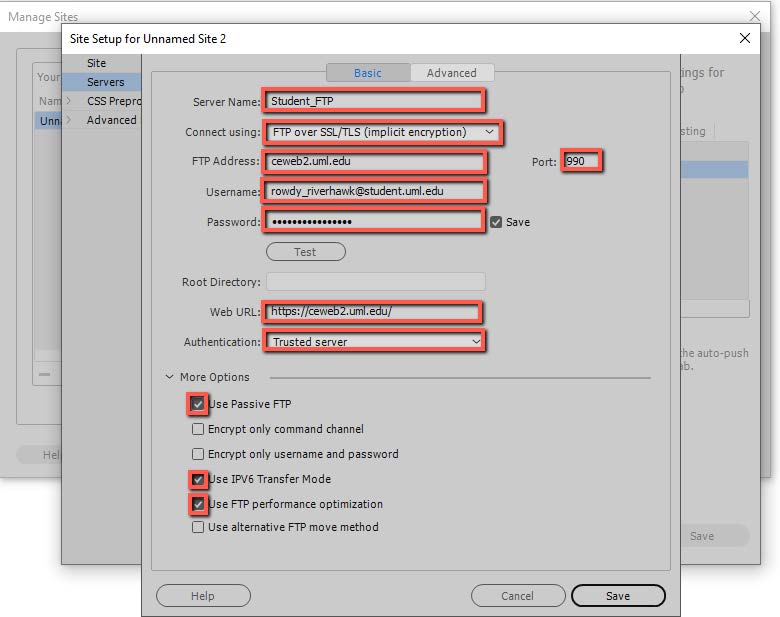
- Select "Servers"
-
Click the plus icon and enter the following:
- Server Name: Student FTP
- Connect using: FTP over SSL/TLS (implicit encryption)
- FTP Address: ceweb2.uml.edu
- Port: 990
- Username: Your student email
- Password: Your student email password
- Web URL: https://ceweb2.uml.edu/
- Authentication: Trusted server
More Options
- Check "Use Passive FTP"
- Check "Use IPV6 Transfer Mode"
- Check "Use FTP performance optimization"
How do I view the web pages I've uploaded?
Note: Your homepage must be named index.htm or index.html.
- Start your web browser (Edge, FireFox, Google Chrome etc.).
-
Enter the following web address:
https://ceweb2.uml.edu/username*/index.html
*Your username is the first part of your student email before @ sign.
Example: If Rowdy Riverhawk is taking a class, they would type in:
https://ceweb2.uml.edu/rowdy_riverhawk/index.html
You must be on UMass Lowell's VPN before you can view your web pages on the FTP server.
Can I get help with this if I'm having trouble?
If you have trouble uploading your files, speak to your instructor, call 978-934-2467 or email
onlinelearning@uml.edu for Tech Support.